How to Export Office 365 Mailbox to PST: 3 Methods Explained


Blog Overview: If you are searching how to export Office 365 mailbox to PST, best method to do this depends on your goal.
- You need a local copy of one mailbox.
- Administrator-managed export.
- You require email data for an investigation purpose.
First understand that PST file is an Outlook data file, that store copies of email messages and other Outlook items. User can use it for:
- Accessing exported email,
- Transfer data among supported Outlook installations.
- Keep local copy of mailbox content.
Microsoft provides different export options to export Office 365 mailbox to PST. This can be executed through Outlook and Microsoft Purview eDiscovery. Each method has it’s own advantage. Opting for the right method can save you time. In this guide three methods will be discussed, their limitations and how to check of your exported PST contains expected data.
Which Office 365 PST Export Method Should You Select
Right method depends on your mailbox access. Amount of data you need and you are exporting for personal use or administrative investigation.
| Export Method | Best Used For | What You Need |
|---|---|---|
| Microsoft Purview eDiscovery | Administrator-managed exports and selected mailbox search results. | Appropriate Microsoft 365 licensing and eDiscovery permissions. |
| New Outlook | Exporting supported mailbox content through newer Windows app. | Supported Outlook version and Microsoft 365 subscription. |
| Classic Outlook | Creating PST copy of mailbox available in desktop Outlook | Classic Outlook and access to required mailbox data. |
Recommendation: Use Classic Outlook when mailbox is configured and required messages are synchronized. Choose New Outlook when its PST export feature is available for your account and version. Microsoft Purview eDiscovery to be used an authorized administrator need mailbox content via managed search workflow.
Method 1: Export Using Microsoft Purview eDiscovery
Microsoft Purview eDiscovery allow authorized users search Microsoft 365 data and export mailbox search results to PST files. It is helpful for compliance work, investigations, and situations where an administrator have to collect selected messages or data from different mailboxes.
Important: Microsoft retired the classic Content Search, classic eDiscovery (standard) experiences on May 26th, 2025 and Classic eDiscovery (Premium) on August 31st, 2025. Procedure below shows current eDiscovery workflow, not older Security & Compliance portal or legacy eDiscovery Export Tool.
Before you start make sure you have:
- Eligible Microsoft 365 license for eDiscovery export.
- Required eDiscovery permissions, including proper search and Export roles.
- Access to case and mailbox data you need to export.
- Clear understanding of mailboxes, dates, and messages included in your export.
Microsoft documents Microsoft 365 Enterprise E3 or E5 licensing for eDiscovery exports. Requirements will be according to service and content being exported, so check current eDiscovery permissions documentation and your organization’s licensing before proceeding.
Steps to Export Mailbox Data Through Purview
1: Step 1: Open Microsoft Purview.
- Go to purview.microsoft.com and sign in with an authorized account.
- Open eDiscovery solution and select Cases.
2: Step 2: Create or open case.
- Choose existing case or create one for relevant investigation or export task.
3: Step 3: Create search.
- Open created case and select searches tab. Create search if you have not already created one.
- Select Exchange Online mailbox or mailboxes that you want to search
- Add conditions such as keywords, sender, recipient, or date range when you need specific messages.
If goal is to export all content available within intended mailbox scope, never add restrictive search conditions unintentionally. Confirm data sources and search criteria before continuing.
4: Step 4: Run search and review the results.
- Run search and check available results and statistics.
- Confirm that proper intended mailboxes and messages are included.
- Review your search criteria again if results appear very narrow or do not match your expectations.
5: Step 5: Start export.
- Open search and select Export.
- Enter export name and configure available options.
- In export format settings, choose Create PSTs for messages to create PST files that will containing email messages.
6: Step 6: Review export settings.
- Settings will determine which items are included and exported data is organized.
Pay close attention to these items:
- Items to include: User can export indexed items that match the search, include partially indexed items, or user can export partially indexed items separately.
- Source Folder Structure: Choose whether to preserve souce folder and path structure when organizing exported data.
- Package Organization: For multiple data sources, review options for organizing results into separate folders and PST files.
Partially indexed items may not been fully evaluated against search conditions. If completeness matters ask responsible administrator or investigator to confirm which items to be included before start of an export.
For detailed instructions, see Microsoft’s official eDiscovery export guide.
7: Step 7: Monitor and download your export.
- Open Process manager and monitor export until it finishes.
When packages are available, download them and extract files if necessary. Confirm that the expected PST files and accompanying reports are present.
Do not delay download: Microsoft states that search export packages expire 14 days after creation. After expiry, packages and their contents are automatically deleted and cannot be recovered.
Method 2: Export Using Classic Outlook
For single Microsoft 365 mailbox, Classic Outlook is easiest option when mailbox is configured in desktop app. This can be done without paid subscription is Classic Outlook and the process is:
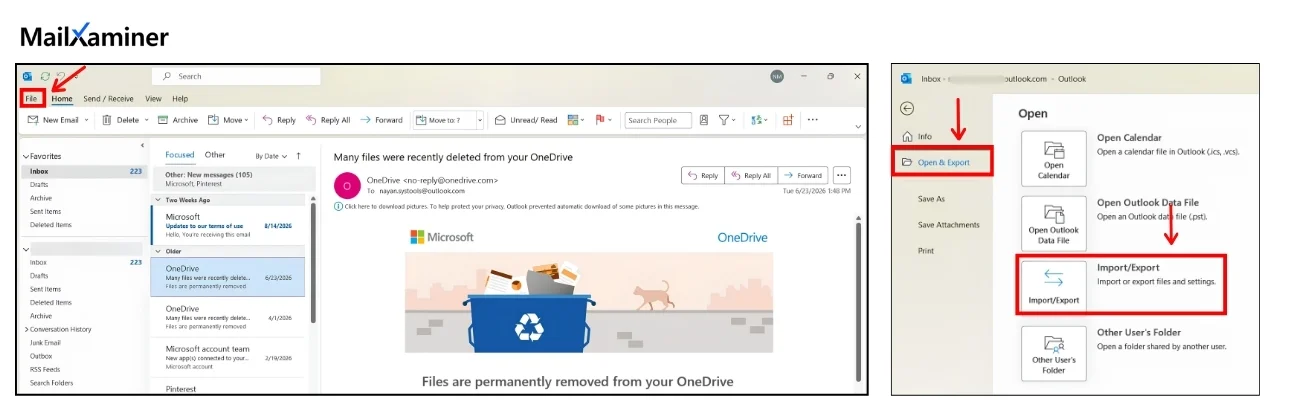
- Open File.
- Select Open & Export.
- Choose Import/Export.
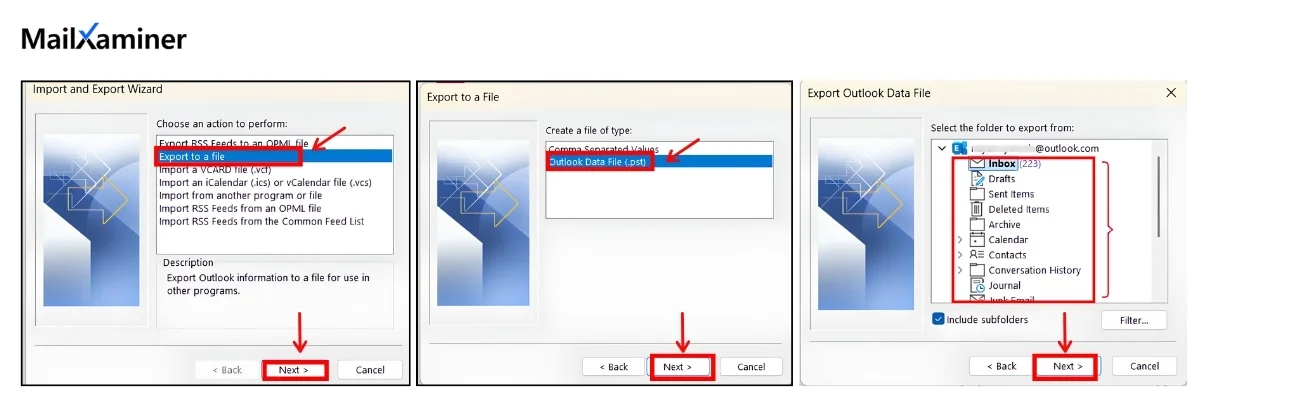
- Select Export to a file.
- Choose Outlook Data File (.pst).
- Select account or folders you wish to export.
- Make sure Include subfolders is selected when you need the mailbox hierarchy.
- Choose the save location and finish the export.
Outlook will create a copy of your selected data in PST format. Your data will remain in Outlook as export is just a copy and not a removal option.
Best For: One Mailbox, normal export, migration preparation, local archiving and creation of portable copy of mailbox information.
Method 3: Export Using New Outlook
New Outlook includes PST export workflow only if you have Microsoft 365 subscription for account used in the app.
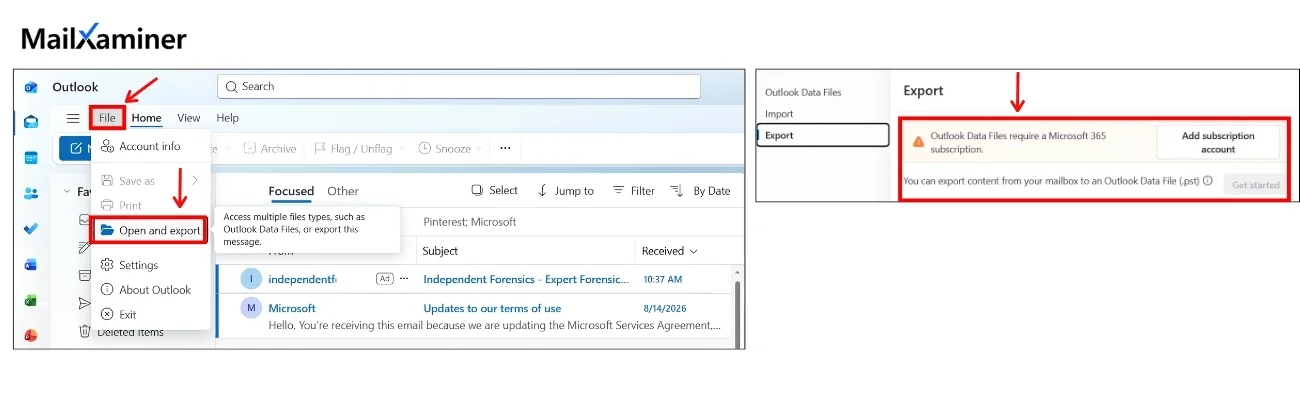 Steps to export are:
- Open New Outlook for Windows.
- Select Settings icon at top right,
- Click on data files and click export.
- Select Get started.
- Follow export wizard to choose the mailbox or specific folders you want to export.
- Complete wizard and save the resulting PST file to your desired location.
- Check exported file to confirm that it contains expected messages.
Can User Export an Office 365 Mailbox to PST Via PowerShell?
On-premises Exchange cmdlet New-MailboxExportRequest is not direct PST export method for Exchange Online. This distinction is important because many guides show command in Microsoft 365 export workflow, even though documented mailbox export procedure applies to Exchange Server environments. For Exchange Online, use the supported Microsoft Purview eDiscovery export workflow when you need an administrator-managed PST export.
PowerShell can help with supported Microsoft 365 administrative tasks and automation, but it should not be shown as a replacement for PST export process.
For more details you can see Exchange Server mailbox export procedures.
Common Office 365 PST Export Problems
PST export sometimes are completed without containing all information as expected. It is important to check issue below before repeating the process.
| Problem | What To Check |
|---|---|
| Older emails are missing. | Review Outlook synchronization settings and confirm required messages are downloaded before export. |
| Purview export options are not available | Check account’s eDiscovery roles, case permissions, and license eligibility. |
| PST contain fewer messages than expected | Review mailbox scope, search filters, date range and partially indexed item settings. |
| Export is taking too long | Check search scope and total data volume. Consider smaller export batch when appropriate. |
| PST not opening | Confirm that download and extraction finished successfully. |
| Purview download is no longer available | Search export package expires after 14 days. Authorized user will have to run export again. |
Note: Never assume an export is completed because process report is showing success. Check that output matches purpose and scope of export.
How to Verify Exported PST File
Open exported PST in compatible Oulook application and confirm that your goal of expected folders, messages, dates and attachments are present. Compare items with source mailbox and review the reports. Users can also use this checklist of what all things to be checked.
Use this checklist:
- Confirm expected mailbox and folders are present.
- Check messages from different dates and folders.
- Open attachments.
- Compare exported contents against source mailbox or available export reports.
- Store PST securely and retain relevant reports.
- For evidence handling, document collection and transfer process, and consider cryptographic hash such as SHA-256 to record file integrity.
PST file is not complete backup or complete forensic record. Its content depend on souce, export method and search criteria, and settings used. Legal and investigative use require additional preservation and documentation procedures
Why Export PST from Office 365 for Digital Forensics
Understanding data structures is as important as knowing how to retrieve them or transfer them to any platform. When we talk about mailbox exports in Microsoft 365, we’re referring to PST files (Personal Storage Table).
Exporting PST files from Office 365 is essential for forensic investigations that preserve email evidence’s authenticity and integrity.
A PST file is Microsoft Outlook’s native format for storing emails, calendar events, contacts, tasks, and more. It’s a structured and compact way to package mailbox content, which can be opened in forensic tools or Outlook itself for detailed analysis. For investigators, PST files are essential for conducting Outlook PST forensics, as they allow offline access to entire mailboxes without requiring a live Exchange connection.
Office 365 (now branded as Microsoft 365) uses Exchange Online to manage emails in the cloud. However, it doesn’t provide a simple GUI-based method to export mailboxes like desktop. This is why experts use PowerShell scripts and Microsoft’s Compliance Center methods, which provide that give you full access to download and preserve user mailbox data.
Why Do We Need to Export Office 365 to PST?
As we learn about both formats, we can see how both platforms are important. While exporting Office 365 mailbox to PST, it isn’t just a convenience, but it’s a necessity.
Why? It is so because cloud data is dynamic. Emails cannot be deleted or made inaccessible once the user account is removed or compromised. By transferring the mailbox content to a PST file, examiners will be able to freeze that data in time and uncover hidden evidence without it being misused or disappearing by someone. It is a critical requirement for maintaining evidence integrity.
Here are several scenarios where exporting mailboxes to PST becomes critical:
- Legal and Audit Purposes- As we discussed, email communications often serve as critical evidence. By exporting Microsoft 365 mailbox to PST, you can get the email data for legal review, and it is admissible in court as well.
- Hacked Admin Accounts- Imagine an Office 365 admin account being hacked. Attackers may manipulate or delete critical user data, including email communications. By having regular PST backups of sensitive mailboxes, organizations can restore emails and other vital communications that might have been compromised.
- Not Relying Solely on Microsoft for Data Control- Though Microsoft 365 provides cloud-based email services but many organizations prefer not to depend solely on Microsoft to manage their data. Exporting Office 365 mailboxes to PST gives businesses local control over email data. This can manage, backup, and secure their data independently from Microsoft cloud services.
Export Office 365 Mailbox to PST Using Automated Software
There are various user concerns that they face while using this manual, and the complicated process poses a risk of data leakage. So, here is the best email forensic software for you. MailXaminer is for users who need deep, detailed, and defensible data collection from Office 365 mailboxes. This email forensics software is a complete package for any technical enthusiast or examiner who needs to analyze the data. So let’s discuss how the software will process Office 365 to PST export.
Detailed Explanation & Working Steps of Software to Export Office 365 Online Mailbox to PST
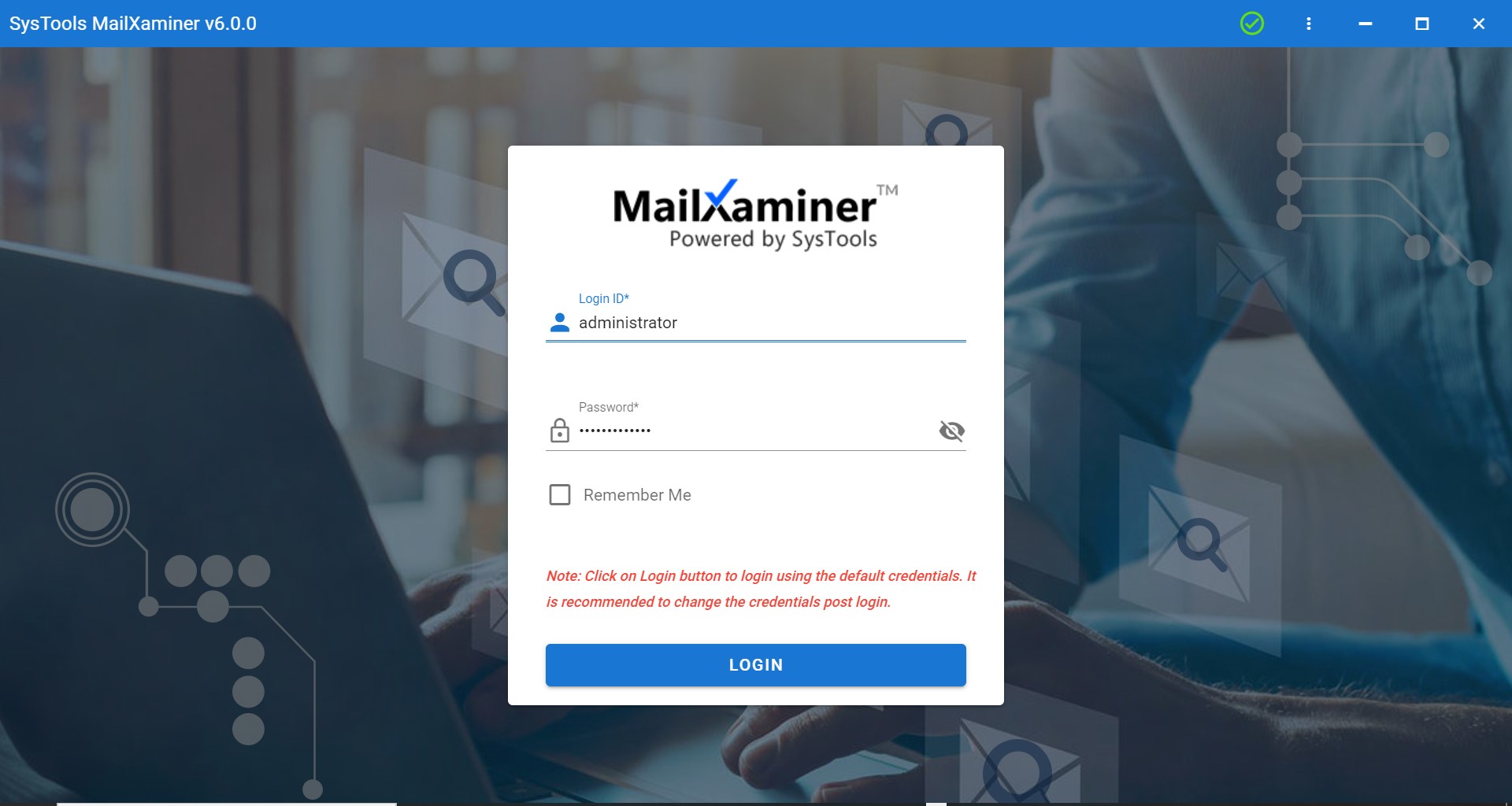
Step 1. Set up the software on your system and log in to the software.
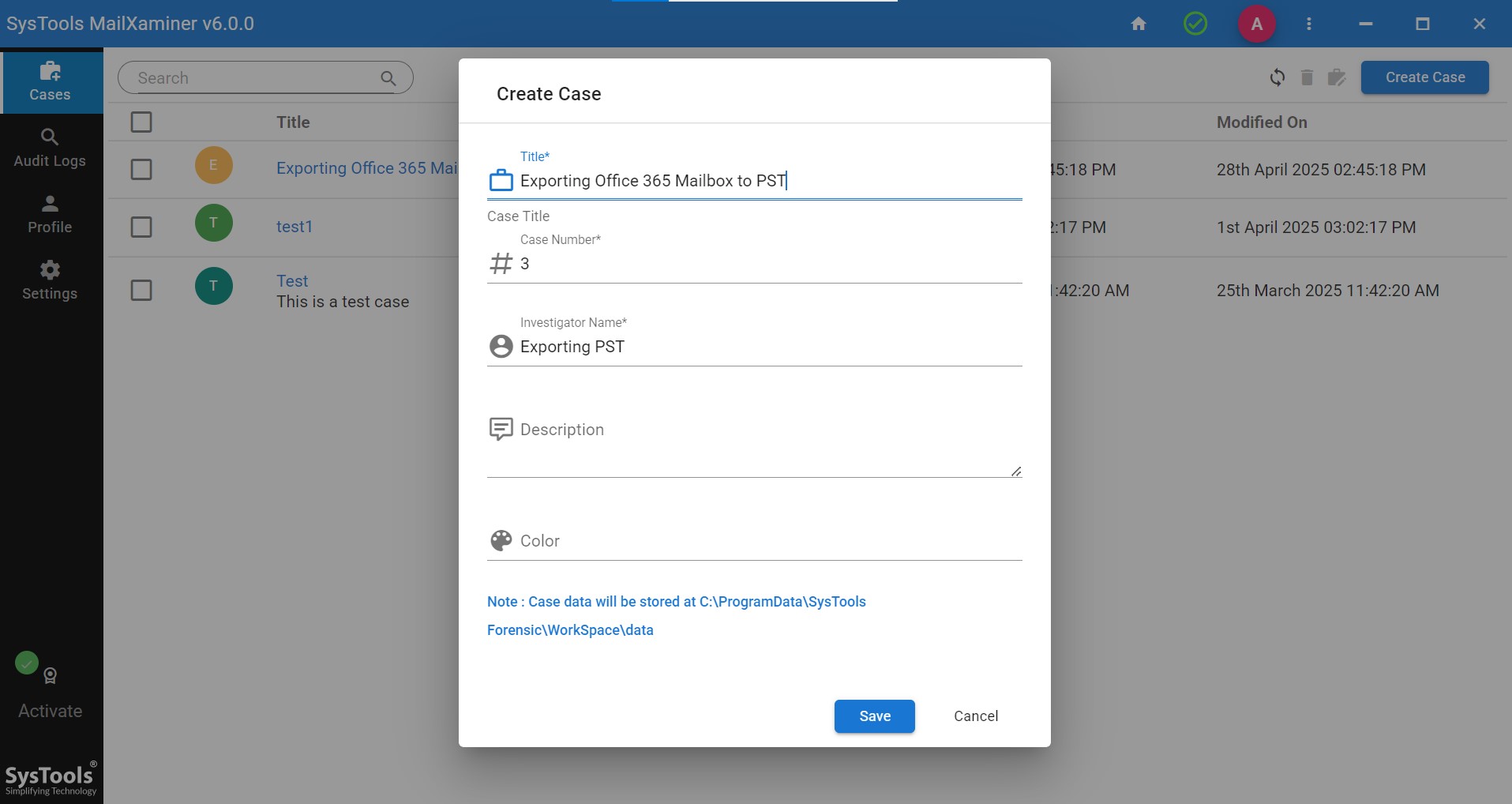
Step 2. Create a new case and add the details, and save the details.
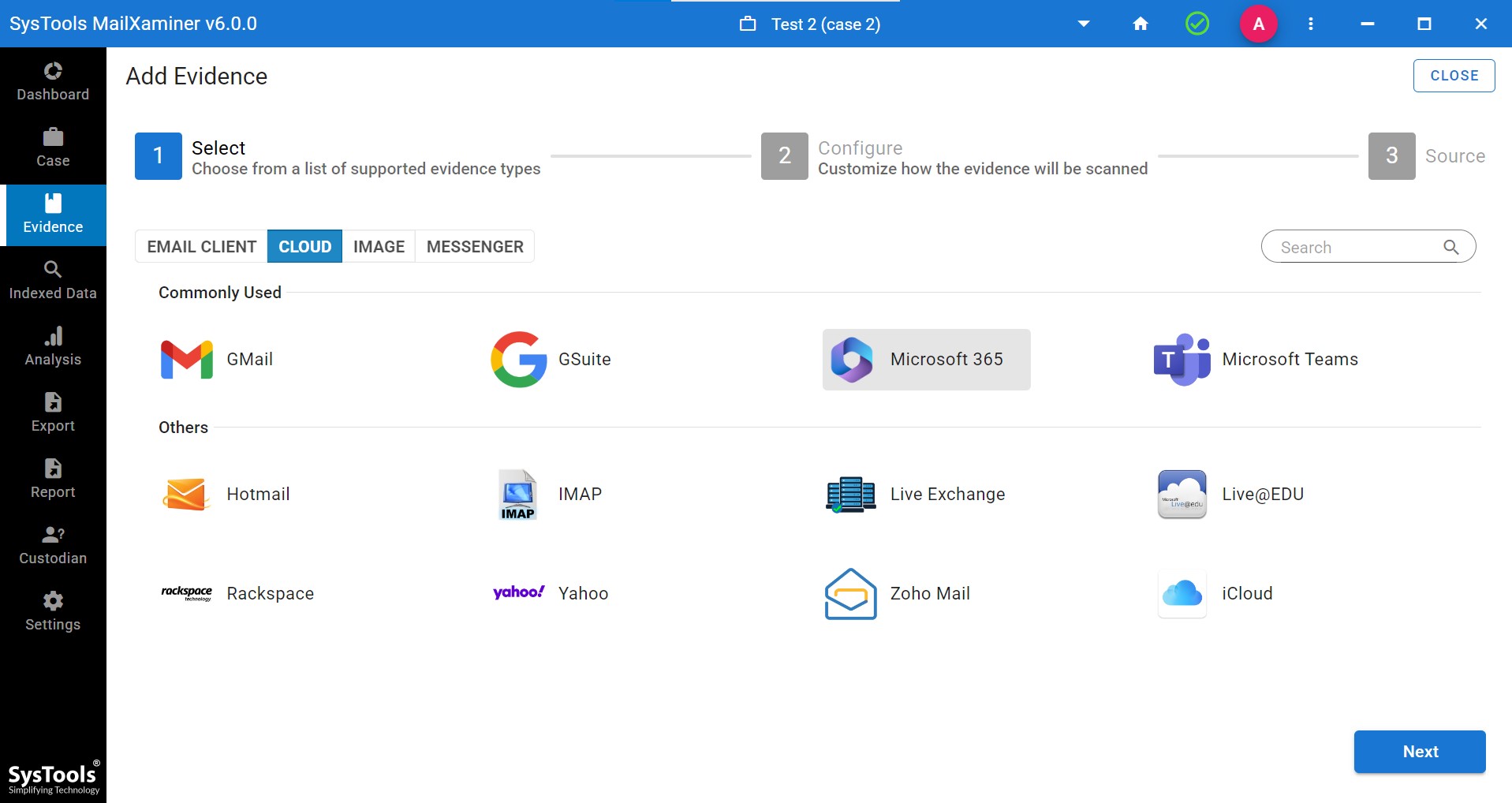
Step 3. Afterthat, option of Add Evidence option will be visible. Now choose Office 365 from the cloud option and click Next.
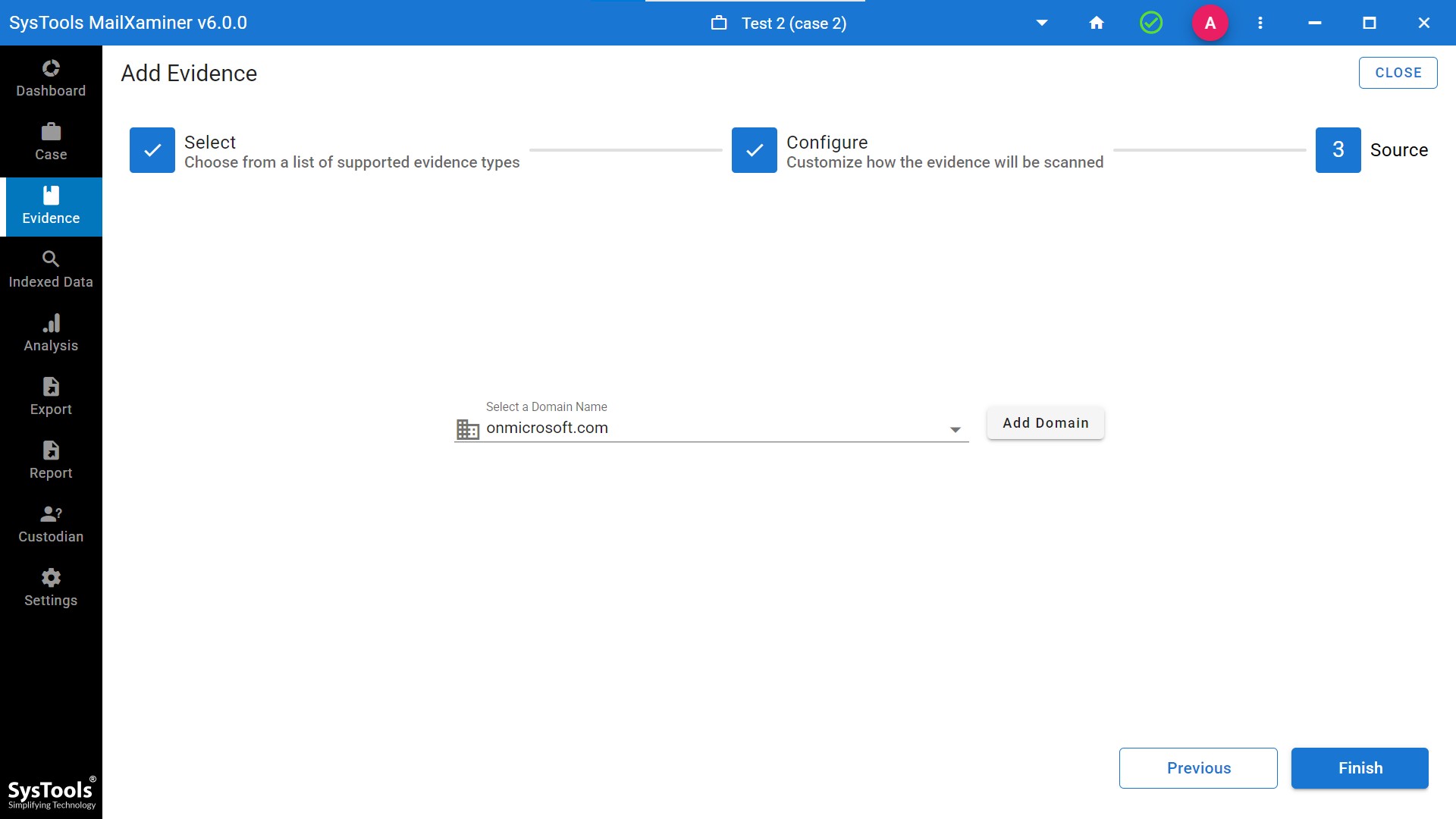
Step 4. Now, add the domain details. For this, you need to select the domain name first.
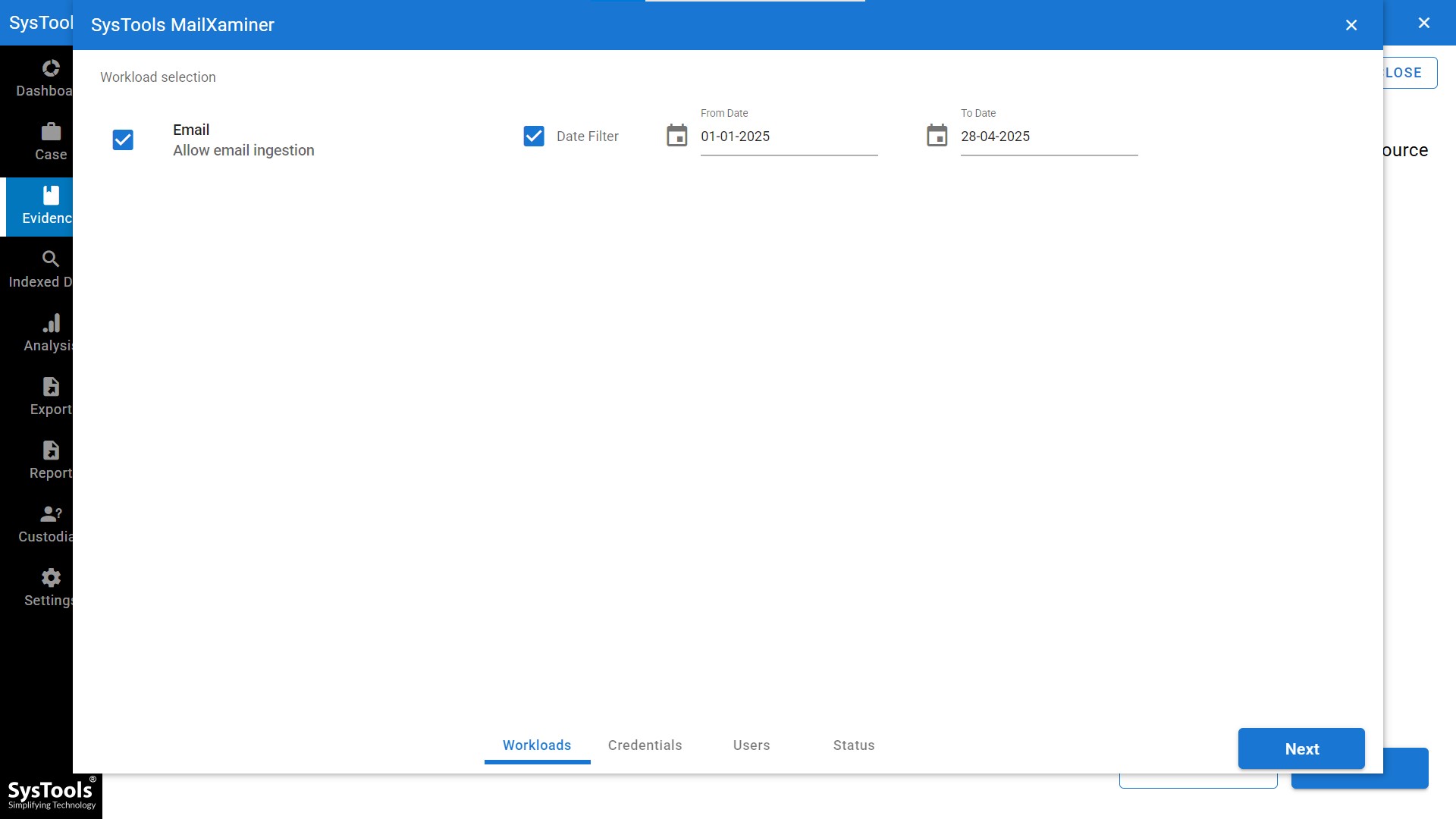
Step 5. Next, the work selection window became visible. Then select email, and also provide a date filter.
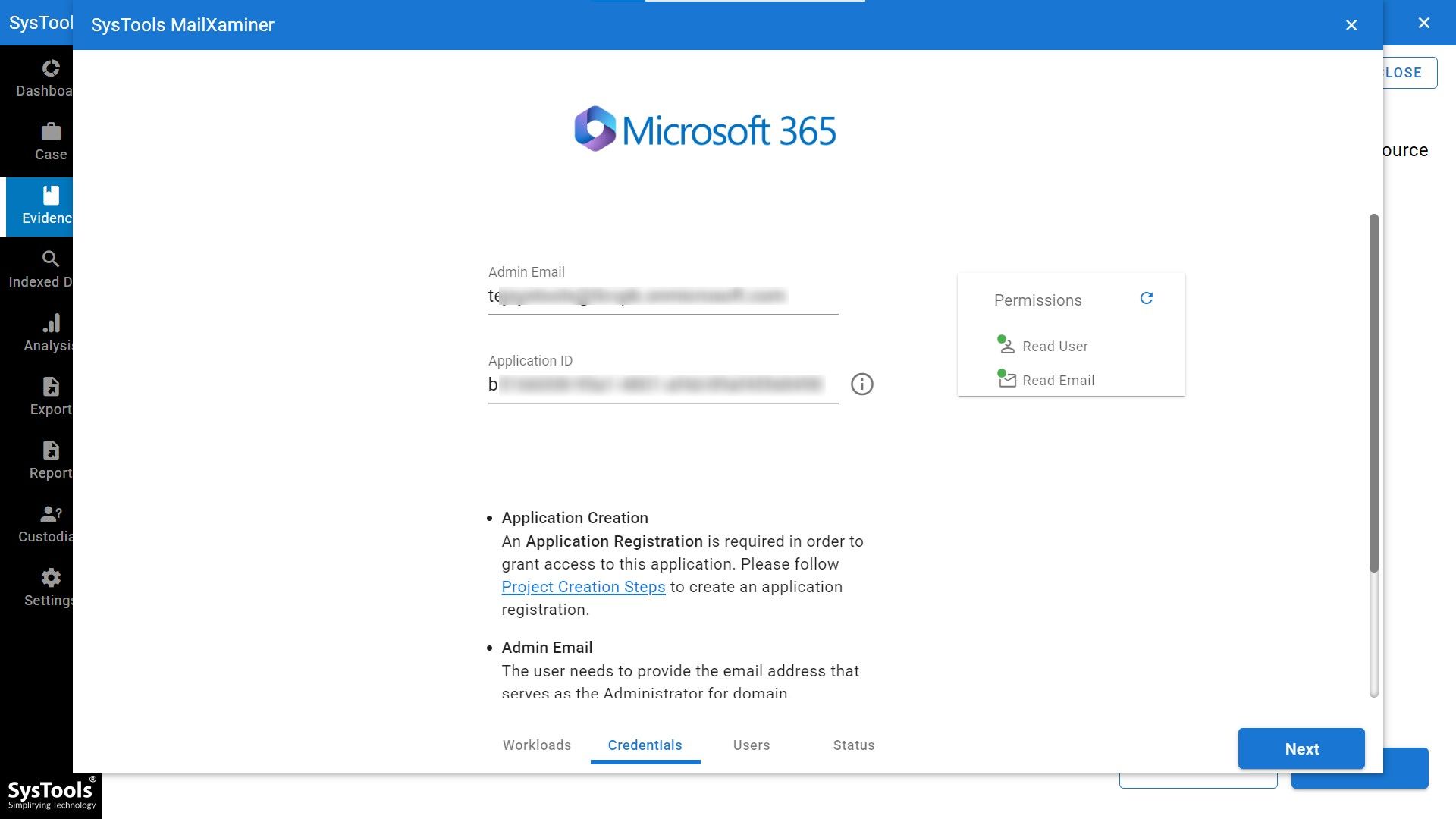
Step 6. Next comes the credentials section. Here, you need to provide the details of your Office 365 domain and validate the permissions.
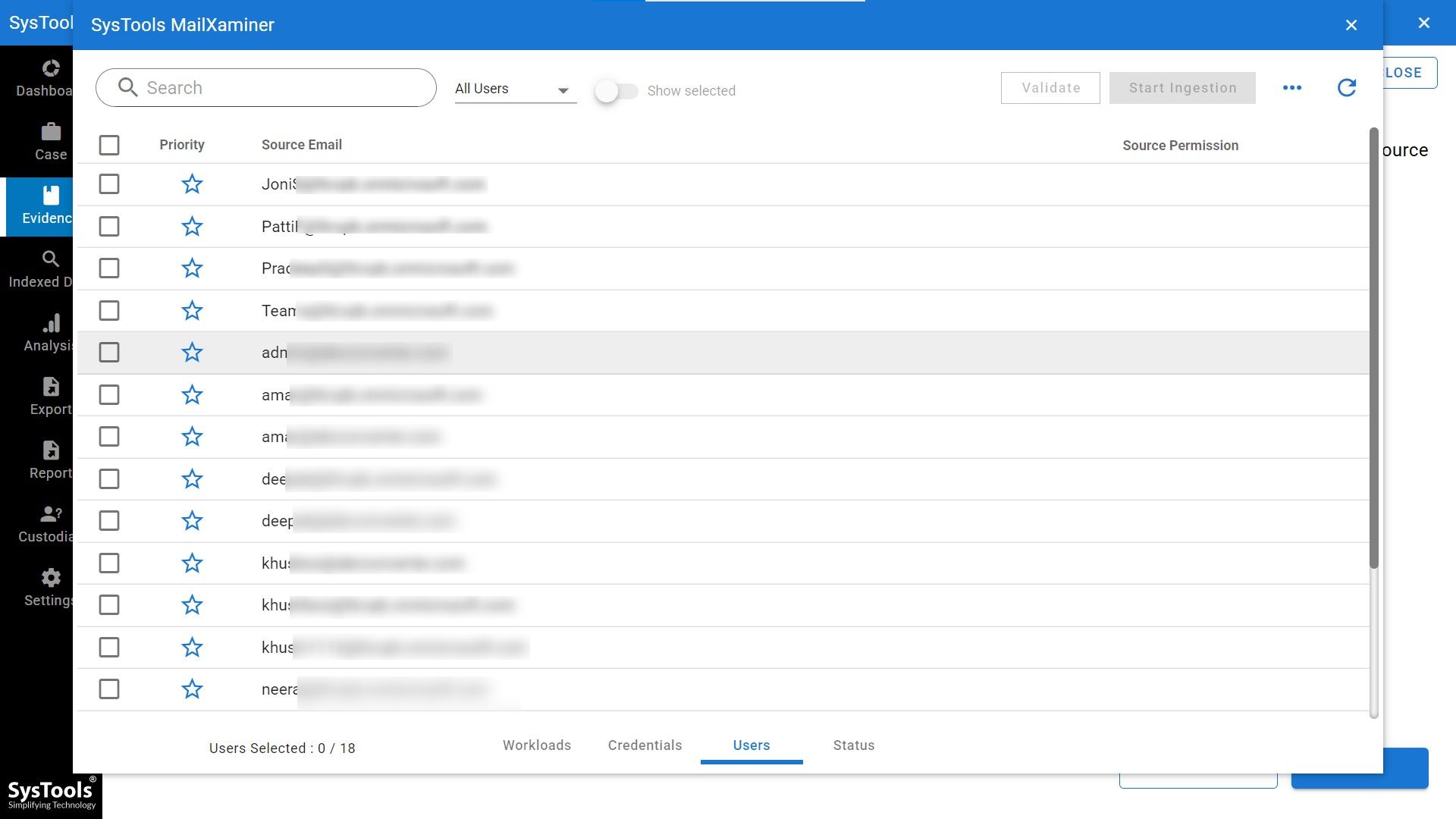
Step 7. Next, the software will fetch all the user mailboxes from the given account details.
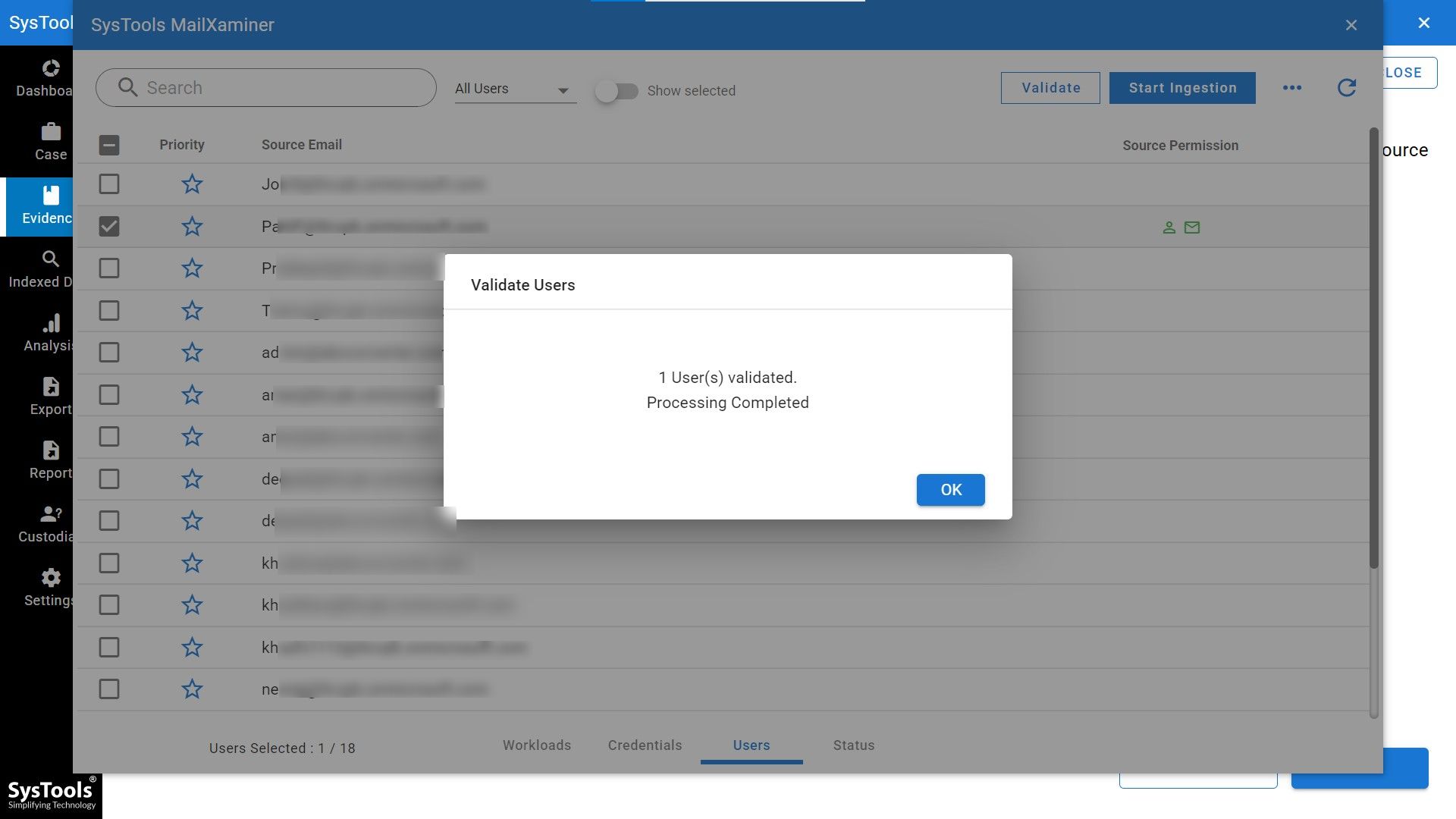
Step 8. Select the mailbox that you want to export and validate the settings. Afterthat, start the ingestion.
Step 9. Then, complete data will show on the dashboard.
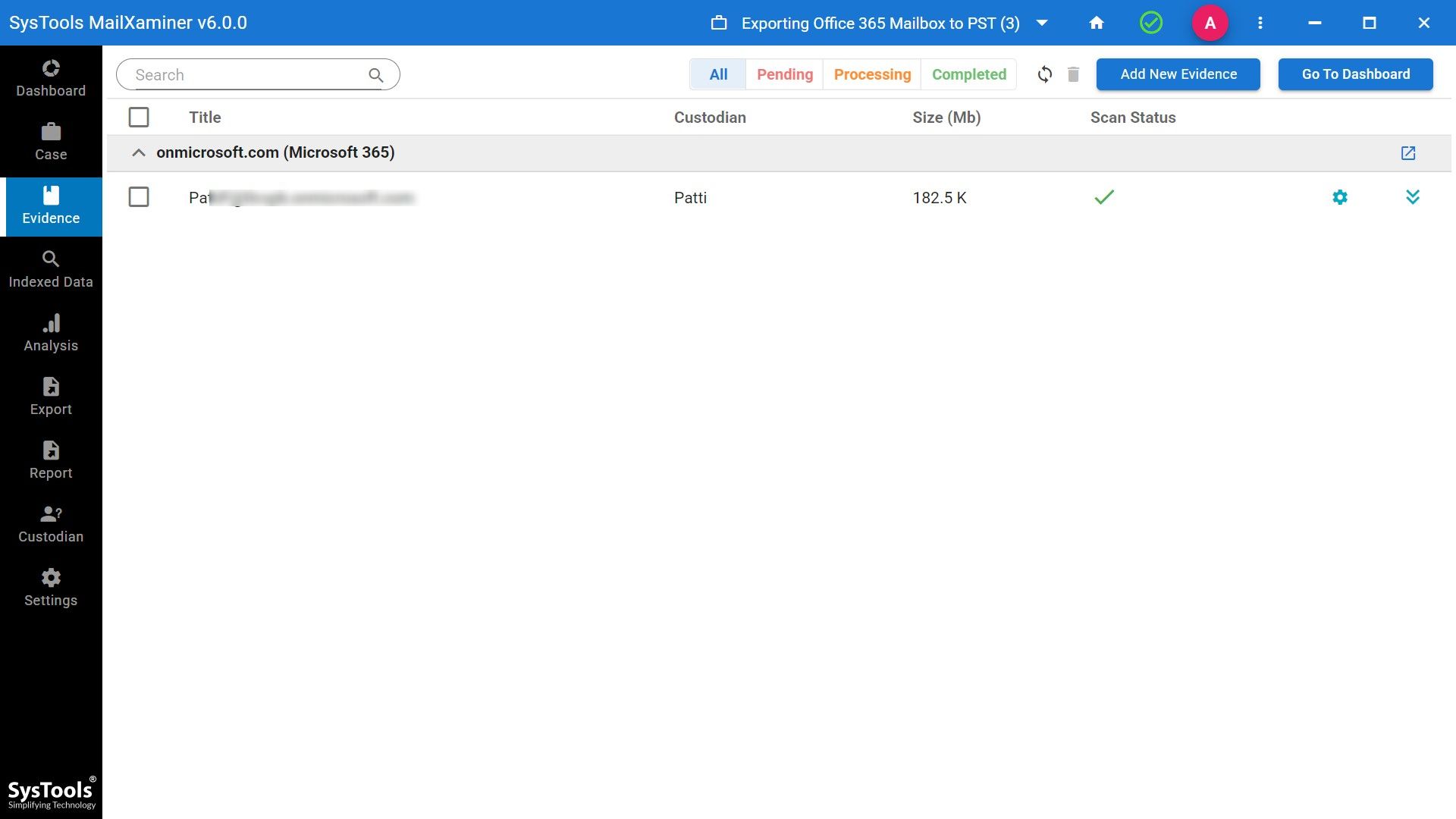
Step 10. Your data will be clearly visible as an evidence and you can deeply analyze the emails with different features of the software.
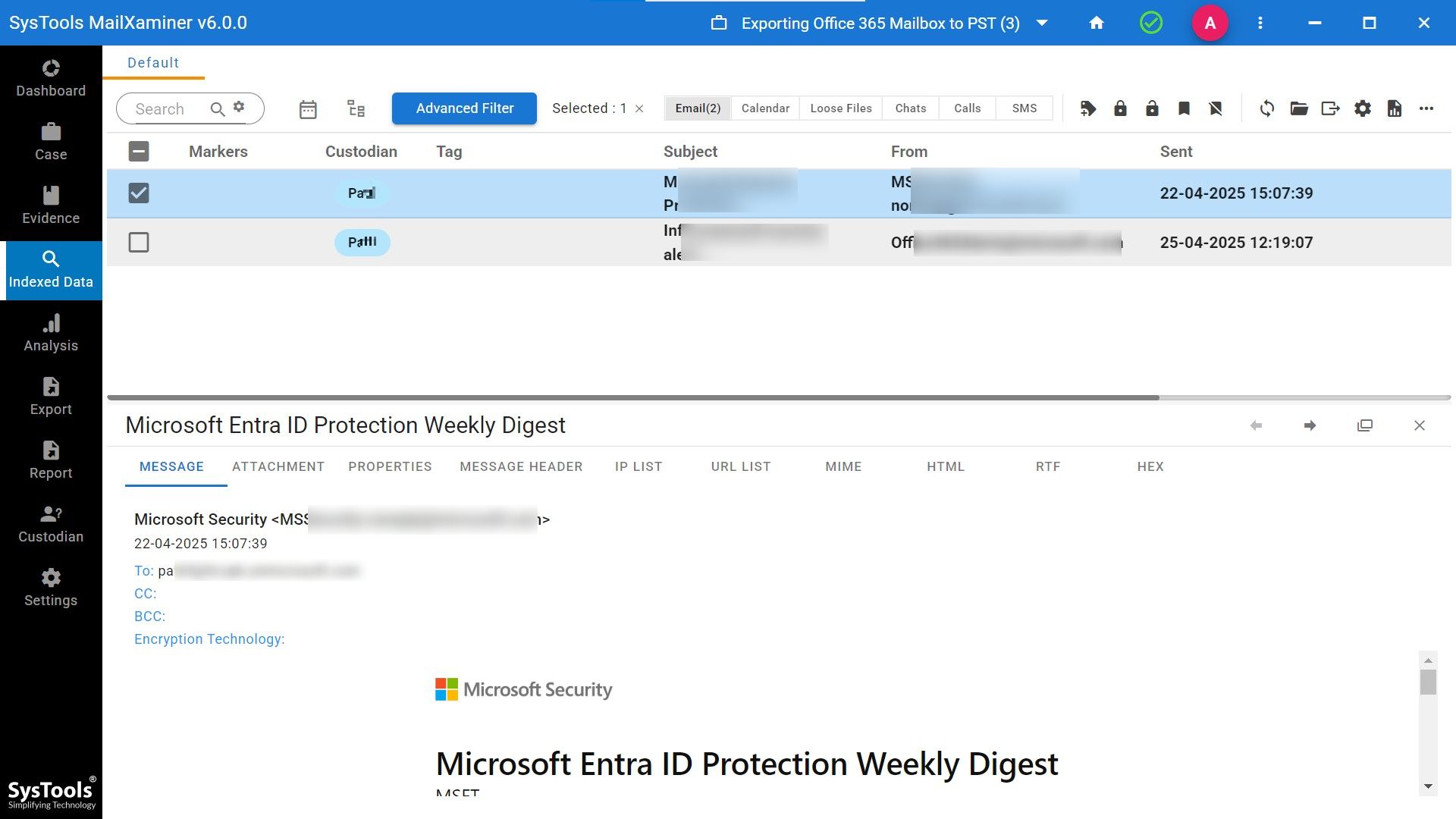
Step 11. Afterthat, simply export the selected mailbox by selecting the export options.
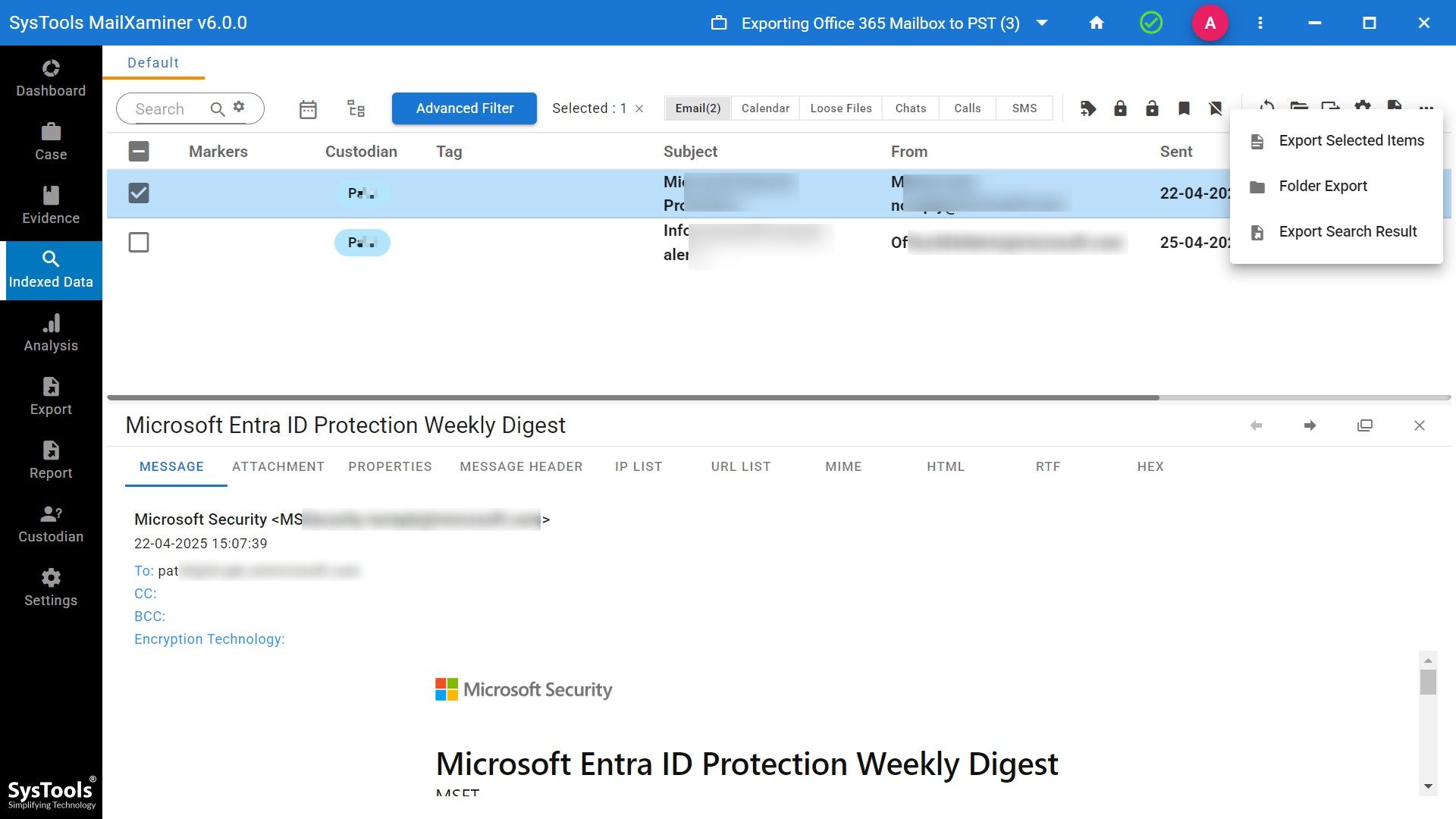
Step 12. Select PST as the file format in which you want your data to be exported.
Step 13. Lastly, provide the export path to the software with the export basic settings and tap on the Export option to complete the process.
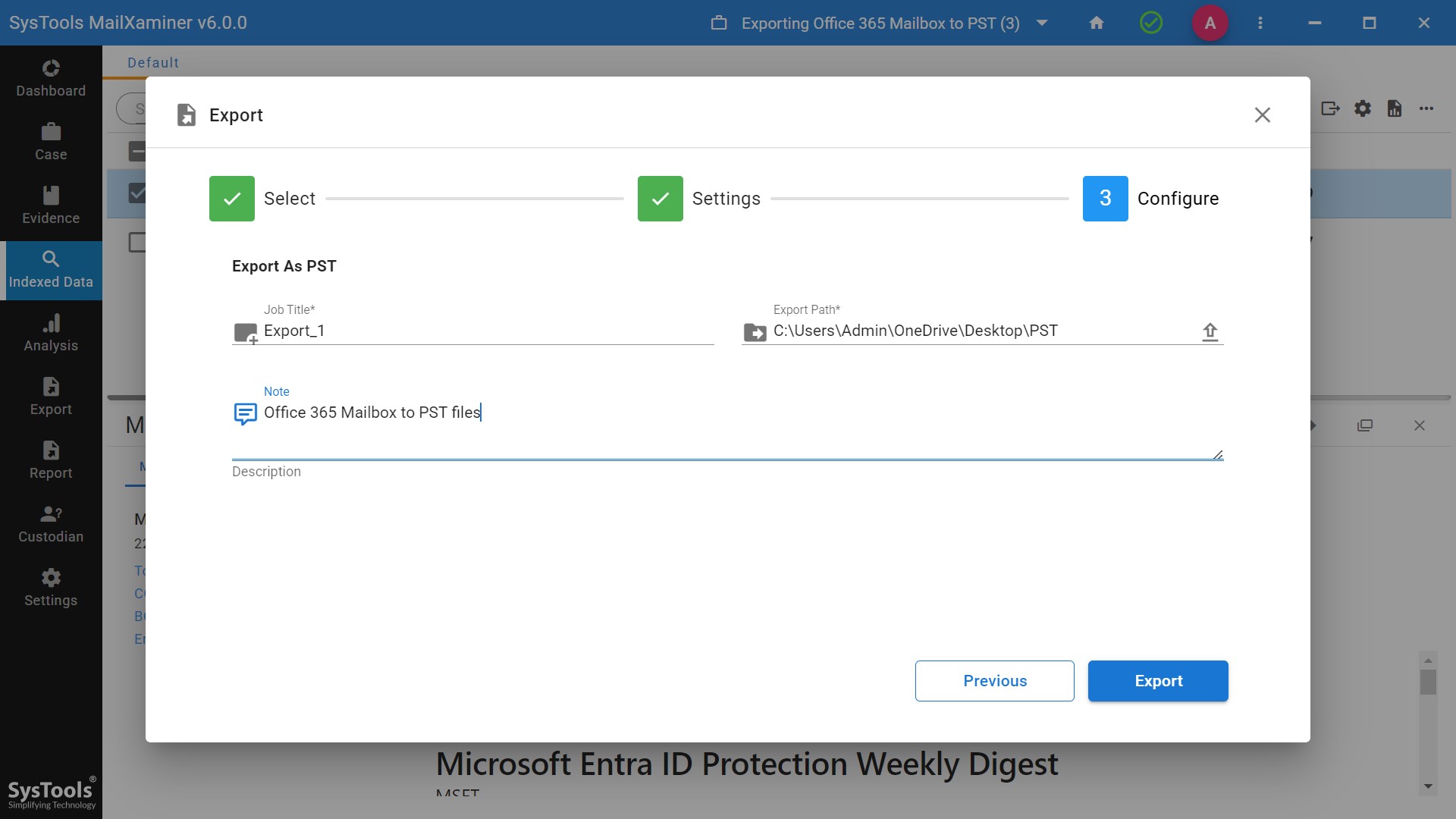
After the export of Office 365 files into PST mailbox for analysis of files, the investigator will typically proceed with several critical steps. The goal is to ensure that all evidence is properly preserved, analyzed, and interpreted by forensic protocols.
Now that we have uploaded the Office 365 mailbox files into Outlook PST, let us understand the next steps in the forensic investigation of these files.
Verify the Integrity of the PST File
You need to ensure that the exported PST mailbox has not been tampered with during the export process. After performing the above steps, you will get the option of generating a complete report of the case.
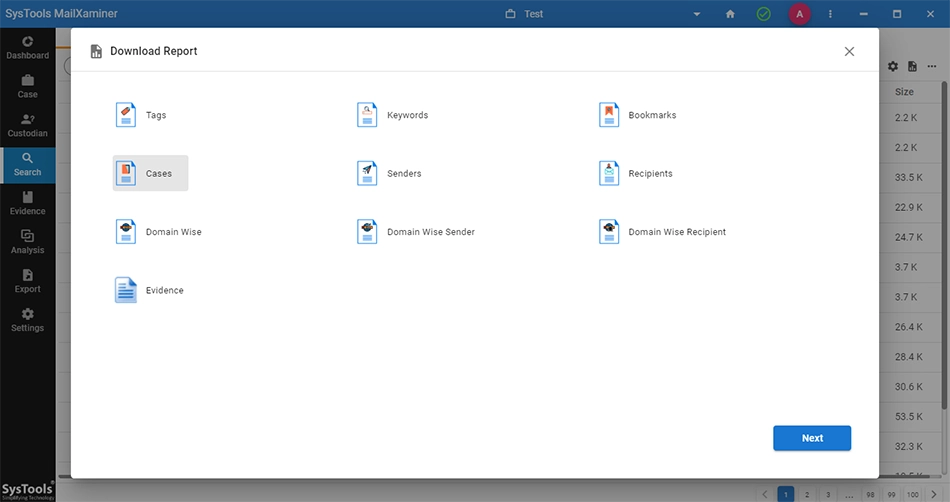
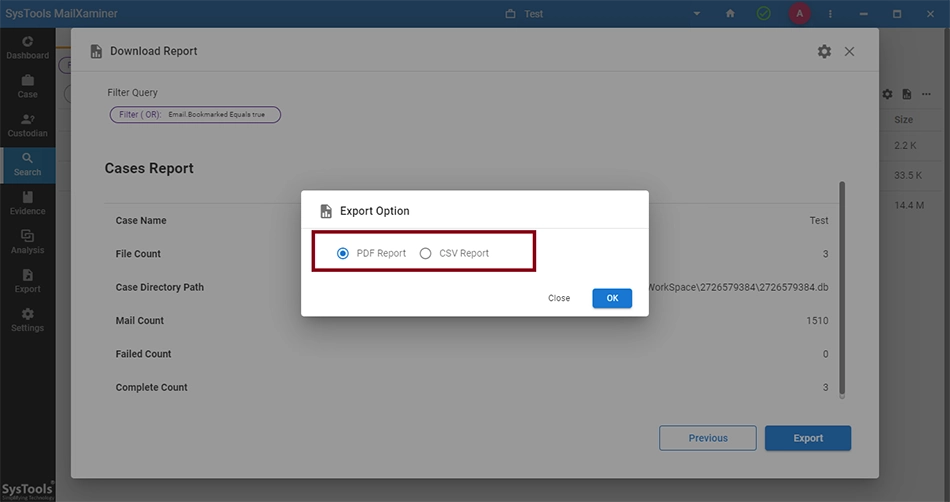
This helps to generate a cryptographic hash (e.g., MD5, SHA-1, or SHA) of the exported PST file to ensure the integrity. This software will allow you to export your generated report into multiple file formats to track the handling and movement of the PST file and its contents.
Conclusion
These steps can ensure that the investigator analyzes the PST file thoroughly and in compliance with forensic standards.
Exporting Office 365 mailboxes to PST is crucial for data security, legal compliance, and forensic investigations. While manual methods like eDiscovery, PowerShell, and Outlook exist, they can be complex and limited. For a faster, more secure, and more comprehensive solution, professional tools like MailXaminer ensure reliable, error-free mailbox export with advanced features.